


Microsoft Project Desktop Training
Learn how to build, manage, and track project schedules in Microsoft Project with expert-led, self-paced training from Dale Howard.
Updated for 2026: Includes refreshed course materials, updated templates, and practical Microsoft Project training for today’s project teams.
This Microsoft Project Desktop training course is designed for project managers, schedulers, planners, and team members who want to learn Microsoft Project the right way. Whether you are brand new to the software or want a more structured approach, this course gives you practical, real-world training you can apply immediately.
Dale Howard has taught Microsoft Project for decades, has authored and coauthored more than 20 books, and has trained thousands of students across multiple industries. This course is built around proven scheduling practices, not random tips pulled from scattered tutorials.
Get started with Microsoft Project Desktop training today.
Starting at $399
What’s Included
- 69 Bite-Sized Videos: No fluff, just actionable lessons ranging from 3-7 minutes.
- 10 Power-Packed Modules: Each designed to level up your Microsoft Project skills.
- 15 Real-World Project Files: Learn the features that matter, straight from a seasoned expert.
- Custom Ribbons & Shortcuts: Get your hands on my personal toolkit to supercharge your project scheduling.
Who This Microsoft Project Desktop Course Is For
This course is a great fit for:
- Teams looking for a practical introduction to Microsoft Project Desktop
- Beginners who need to learn Microsoft Project from the ground up
- Project managers who want stronger scheduling skills
- Schedulers and planners who need a more consistent process
- Professionals who want self-paced Microsoft Project training
What You’ll Learn
In this Microsoft Project Desktop training course, you will learn how to:
- Create and organize a project schedule
- Work with tasks, milestones, and dependencies
- Build and manage calendars
- Assign and manage resources
- Track project progress
- Apply scheduling best practices
- Use Microsoft Project more efficiently in real-world projects
Course Materials
As a part of this course, each student will receive the following:
- Hands On Exercises workbook in PDF format
- Student sample files
Course Description
This “hands on” self-paced eLearning course teaches the foundational knowledge required to effectively manage “process agnostic” enterprise projects using Microsoft Project with either Project Online or Microsoft Project Server. Our “keep it simple” training approach allows students to master the vital skills they need to effectively plan and manage an enterprise project using Microsoft’s PPM (Project Portfolio Management) tools.
Audience
This course is focused on the core needs of project managers, project schedulers, and project coordinators who use Microsoft Project with either Project Online or Microsoft Project Server to manage enterprise projects.
Course Pre-Requisites
Each student must have a copy of one of the following installed on his/her PC:
- Project Online Professional for Office 365
- Microsoft Project 2016 or higher
Versions of Microsoft Project earlier than the 2016 version do not qualify for this course.
Best Instructor Ever!
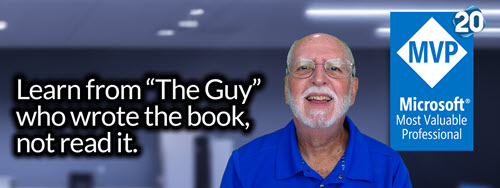
Dale Howard has been a Microsoft Project MVP (Most Valuable Professional) for 20 years in a row and is currently one of only 26 Project MVPs in the entire world. If you post a question about any of Microsoft’s PPM tools on the public message boards, Dale is frequently the person who will answer your question.
Module 01: Microsoft Project Overview
- Working with the User Interface
- Understanding the Gantt Chart View
- Understanding the Microsoft Project Data Model
- Understanding and Using Views
- Understanding and Using Tables
- Understanding and Using Filters
- Understanding and Using Groups
- Project Navigation Tips
Module 02: Working with a New Project
- Creating a New Project
- Creating a New Project from a Template
- Creating a New Project from a Personal Template
- Working with the Standard Calendar
- Add Holidays to the Standard Calendar
- Create a Custom Calendar
- Copy Calendars to the Global.mpt File
- Defining a New Project
- Set the Project Start Date
- Enter Project Properties
- Display the Project Summary Task
- Set the Project and Nonworking Time Calendars
- Set Project Options
- Save the Project
Module 03: Task Planning
- Understanding Manually Scheduled vs. Auto Scheduled Tasks
- Creating the Task List
- Creating Summary Tasks
- Creating Milestone Tasks
- Entering Duration Estimates
- Specifying Task Dependencies – Overview
- Specifying Task Dependencies in a Real World Project
- Applying Task Constraints
- Applying Deadline Dates
- Applying a Task Calendar
- Using Cell Background Formatting to Highlight Tasks of Interest
Module 04: Resource Planning
- Understanding Project Resource Types
- Creating a Work Resource
- Creating a Generic Resource
- Editing a Work Resource
- Creating a Material Resource
- Creating Budget and Expense Cost Resources
Module 05: Assignment Planning
- Assigning Resources to Tasks: Best Practices
- Assigning Resources to Tasks Using the Task Entry View
- Assigning Resources to Tasks Using the Assign Resources Dialog
- Assigning Material Resources
- Assigning Budget Cost and Expense Cost Resources
Module 06: Completing the Project Schedule
- Performing a Quality Check on the Project Schedule
- Saving and Backing Up a Baseline for the Project
Topical Outline: Execution Training
Module 07: Capturing Task Progress
- Setting the Status Date for the Project
- Manually Entering Task Progress
Module 08: Working with Task Updates
- Rescheduling Incomplete Work from the Past
Module 09: Variance Analysis, Plan Revision, and Change Control
- Analyzing Project Variance
- Revising a Project Schedule
- Adding New Tasks to a Project through Change Control
- Updating the Project Baseline
Module 10: Project Reporting
- Creating a Timeline View
- Formatting the Timeline View
- Exporting the Timeline View to Another Application
- Viewing a Dashboard Report
- Editing a Table in a Dashboard Report
- Editing a Chart in a Dashboard Report
Want Group Discounts?
Contact Us for Discounts
Why My Microsoft Project Training Courses Stand Out?
There are plenty of free videos online, but most leave out the structure, workflow, and best practices that make Microsoft Project truly useful. This course gives you a clear path to learning the software with real examples, guided instruction, and practical tools you can use right away.
- Two Decades of MVP Recognition: Being honored as a Microsoft Project MVP for 20 consecutive years isn’t just a title I wear. It’s a testament to my deep expertise and unwavering dedication to the field.
- A Repository of Knowledge: With over 20 books to my name, my knowledge in Microsoft Project is vast and varied. Whether you’re an avid reader or a visual learner, I’ve got resources ranging from books to YouTube tutorials to cater to your learning style.
- Customized Training Solutions: I recognize that every organization has unique needs. That’s why I offer tailored Microsoft Project Training solutions, ensuring that every student extracts the maximum value from the course.
- Beyond Just Training: Sometimes, what you need goes beyond conventional training. My coaching and mentoring services are designed to provide guidance at every step, ensuring you’re equipped to tackle even the most complex project challenges.
- A Pillar in the Community: My active role in the Microsoft Project community is a testament to my commitment. I’m not just a trainer; I’m a mentor, guide, and a trusted expert for many.
- Endorsed by the Best: When top-tier organizations entrust their training needs to me, it’s a clear indicator of the quality and value I bring to the table.
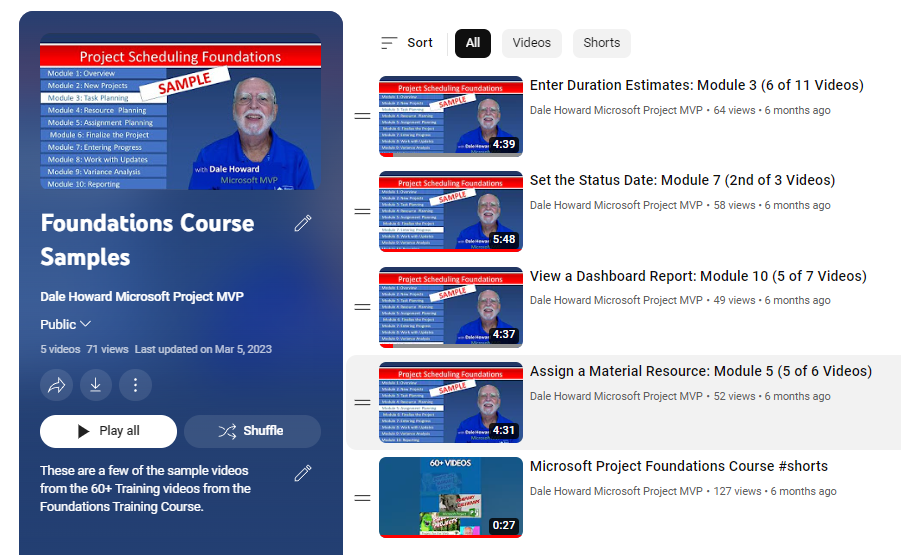
In a nutshell, while there are numerous Microsoft Project Training Courses out there, my holistic approach, combined with years of experience and dedication, truly sets my offerings apart. If you still have doubts, check out my YouTube channel.
Ready to Learn Microsoft Project?
Build your Microsoft Project skills with a structured course designed by one of the most experienced trainers in the field.
Starting at $399
Microsoft Project Desktop Training FAQs
1. Who is this Microsoft Project Desktop training course for?
This course is designed for beginners, project managers, schedulers, planners, and professionals who want to learn how to use Microsoft Project Desktop more effectively.
2. Is this Microsoft Project Desktop course good for beginners?
Yes. This course is a strong starting point for beginners who want structured, practical Microsoft Project training instead of piecing things together from random tutorials.
3. Is the training self-paced?
Yes. This is an OnDemand training course, so you can move through the lessons at your own pace.
4. What is included in the Microsoft Project Desktop training course?
The course includes 69 videos, 10 modules, 15 real-world project files, and custom ribbons and shortcuts.
5. What will I learn in this course?
You will learn how to create schedules, manage tasks, assign resources, track progress, and apply Microsoft Project best practices in real-world situations.
6. Who teaches the course?
The course is taught by Dale Howard, a longtime Microsoft Project trainer, author, and Microsoft Project MVP.
7. How much does the course cost?
The course starts at $399.
8. How is this course different from free online videos?
This course provides a structured learning path, practical project files, and instruction based on real-world experience instead of disconnected tips.